Every switch. One tool.
Switch Config Tool manages Aruba, HPE, Dell, UniFi and Instant On switches from one Windows PC: find devices, change VLANs and ports, back up configurations, spot problems. Local, no cloud account.
- Find & understand
- Ports, VLANs & layer 3
- Back up
- Check & log
- Overview & tools
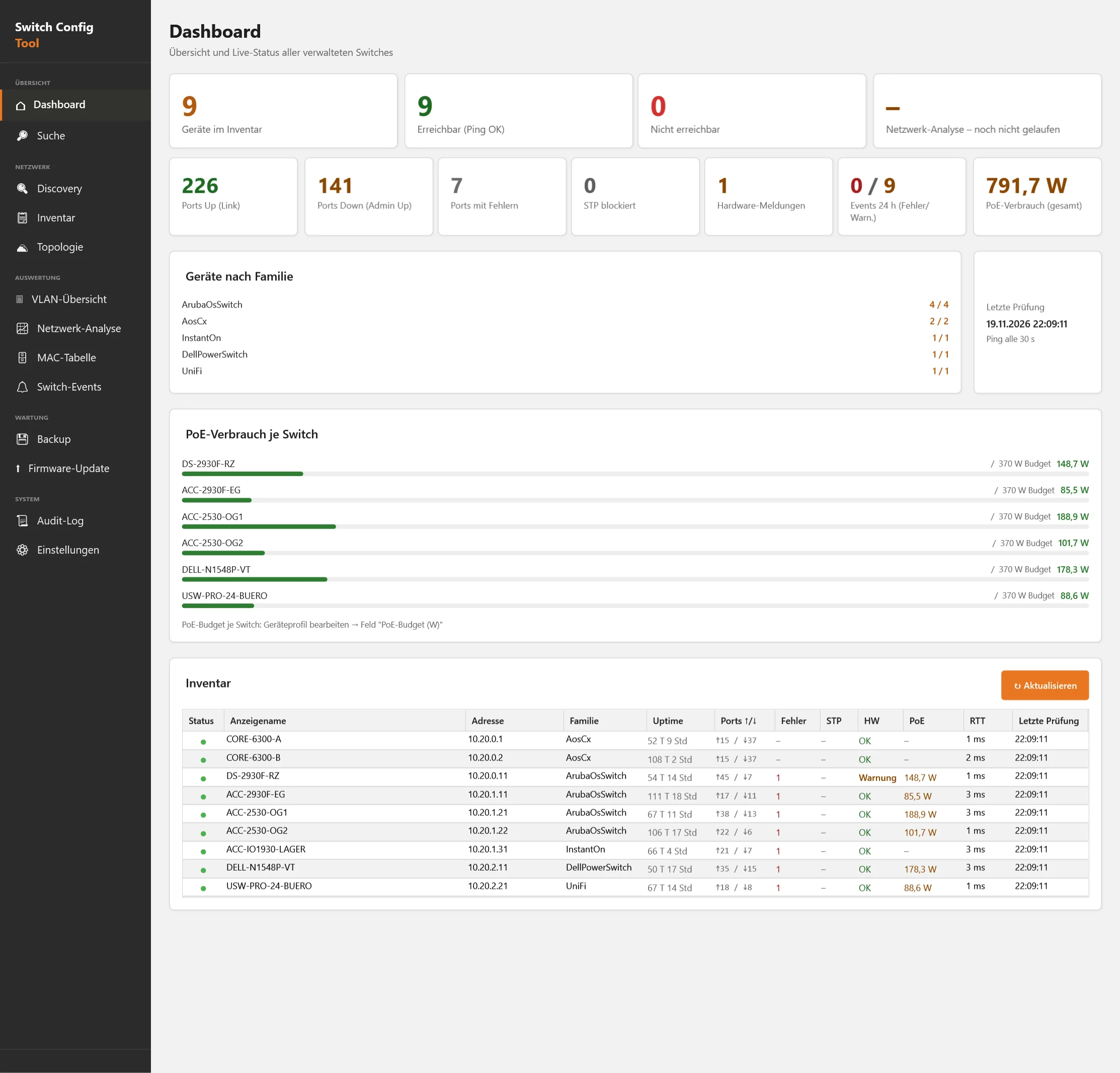
Dashboard
The state of the whole network on one page.
- Ping status of all switches, ports with and without link, ports with error counters and blocked STP ports
- PoE consumption per switch against the entered budget
- Hardware alerts: temperature, fans, power supplies and SFP module levels
- Events of the last 24 hours with errors and warnings, result of the network analysis
Eight device families, described honestly
Write access exists only where the vendor interface allows it reliably. Everything else stays read-only or is marked experimental.
| Family | Access | Read | Write |
|---|---|---|---|
| Aruba AOS-CX | REST over HTTPS, SSH | full | full |
| ArubaOS-Switch (ProCurve) | REST, SSH; legacy devices Telnet, otherwise SNMP | full | full |
| Aruba Instant On 1930/1960 | SNMP, web interface | full | experimental: port and VLANs, locally managed only |
| HPE OfficeConnect | SNMP | full | read-only |
| 2400/2500 Series | SNMP, SSH (best effort) | full | limited |
| Dell PowerSwitch / N-Series | SSH, Telnet | full | limited: port state, description |
| Ubiquiti UniFi / EdgeSwitch | SNMP, SSH | full, experimental | read-only |
| Linksys LGS | SNMP | full, experimental | read-only |
Write functions only appear in the tool when the provider of that family reports them explicitly.
Discovery and inventory
Scan the network, recognise switches, add them to the inventory.
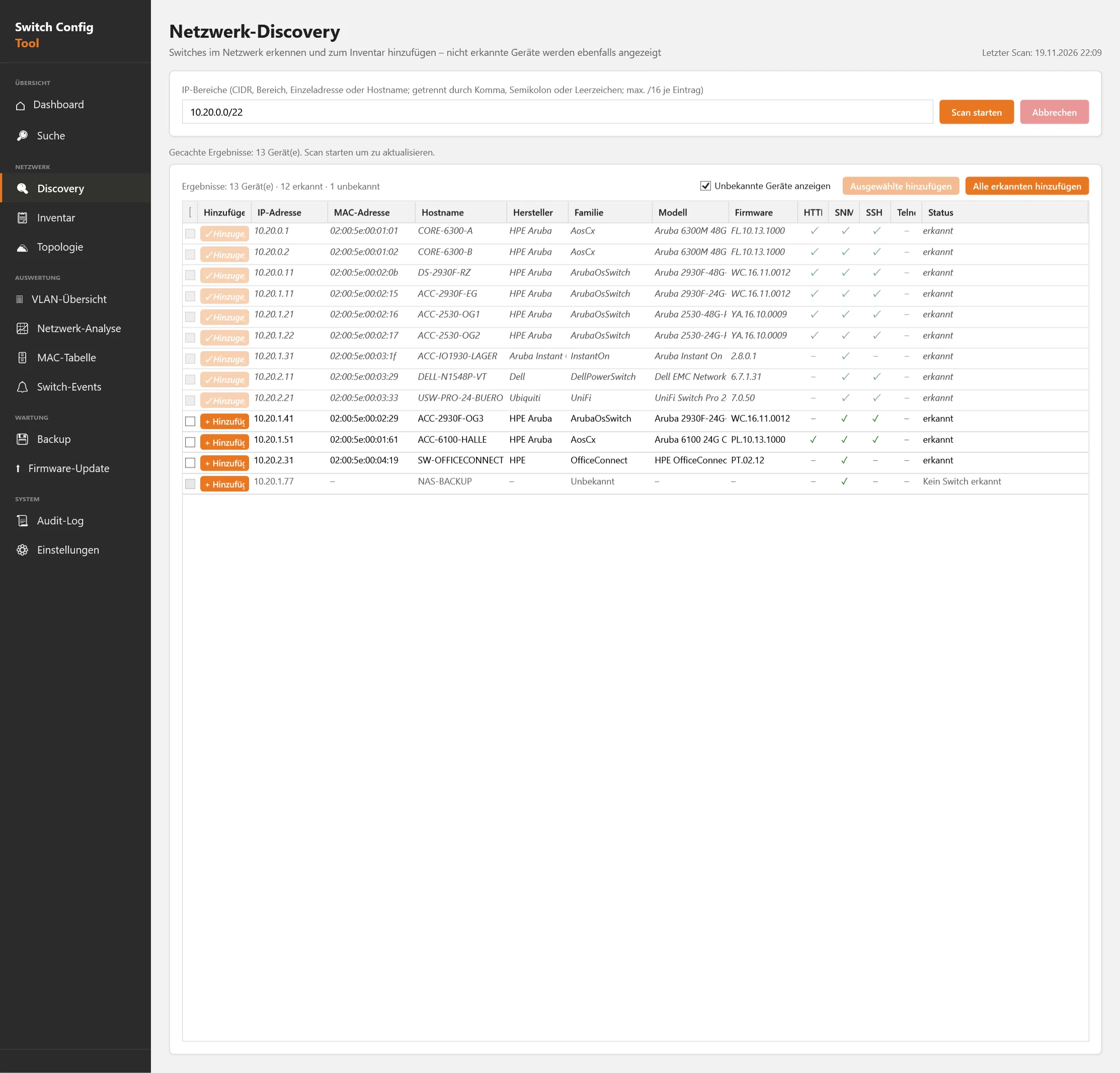
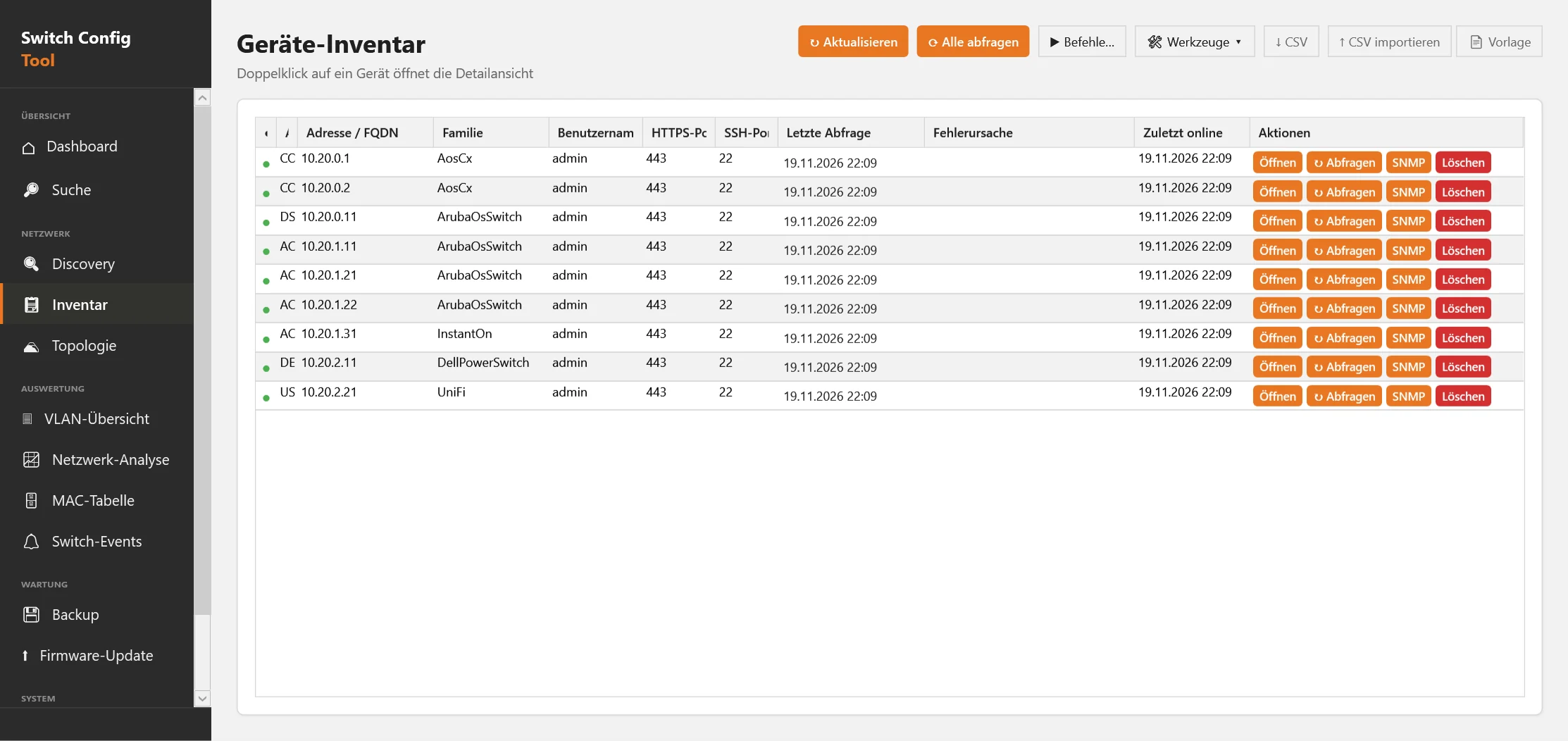
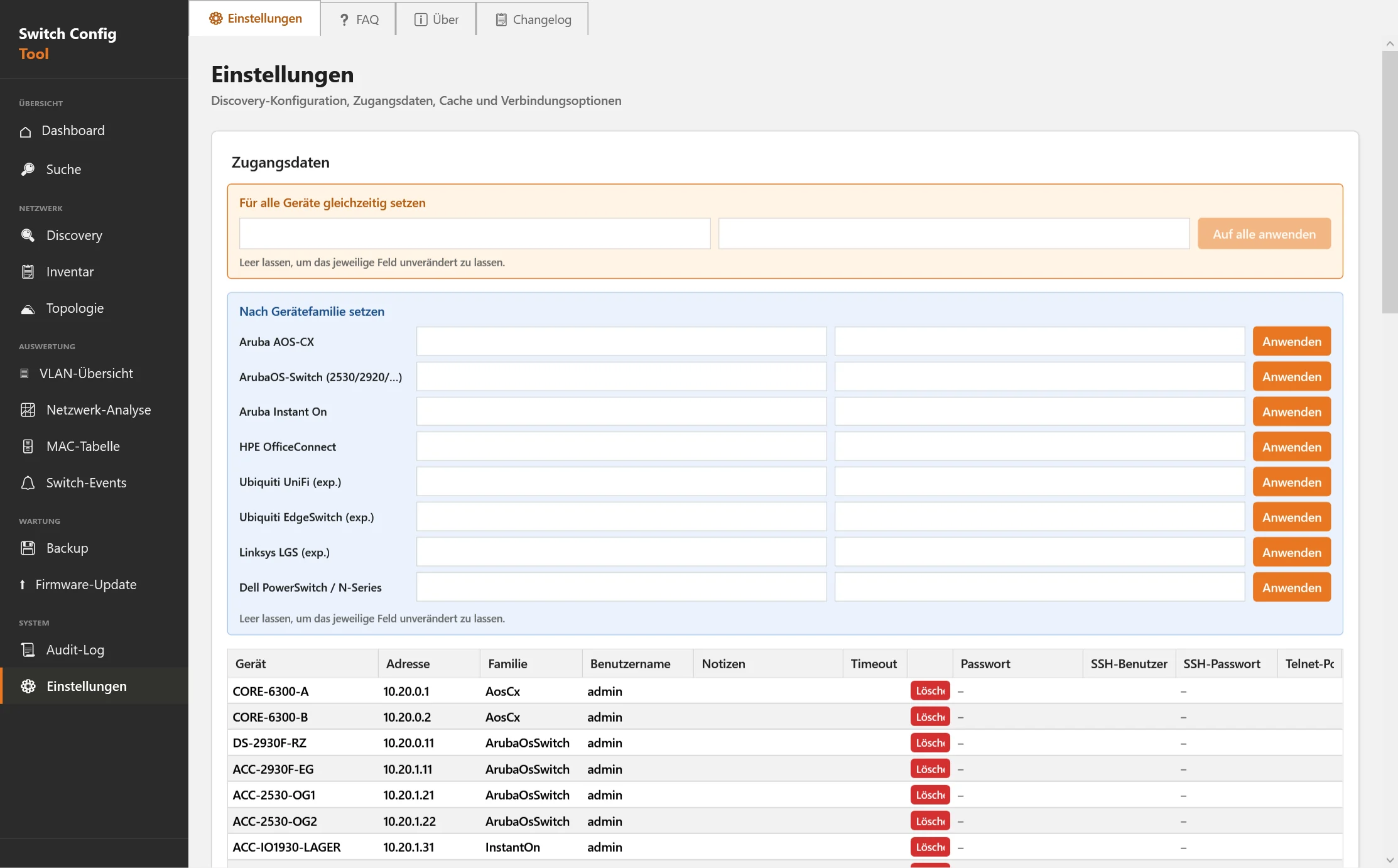
Network ranges as CIDR or address range are scanned. The tool recognises the family via REST, SNMP, SSH and Telnet and shows model and firmware. One click adds a device, or several selected ones at once. Credentials are stored encrypted with Windows DPAPI and can be edited later.
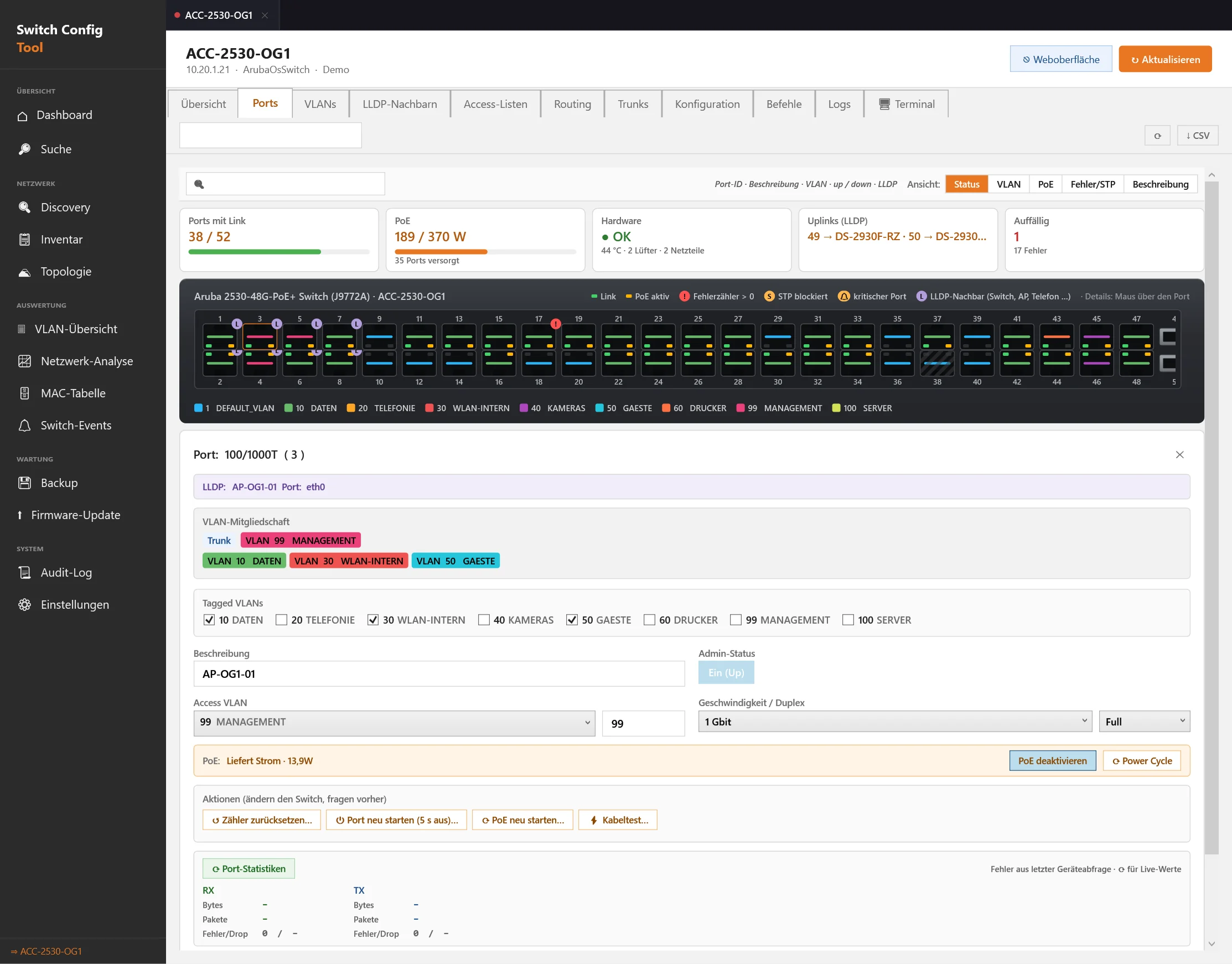
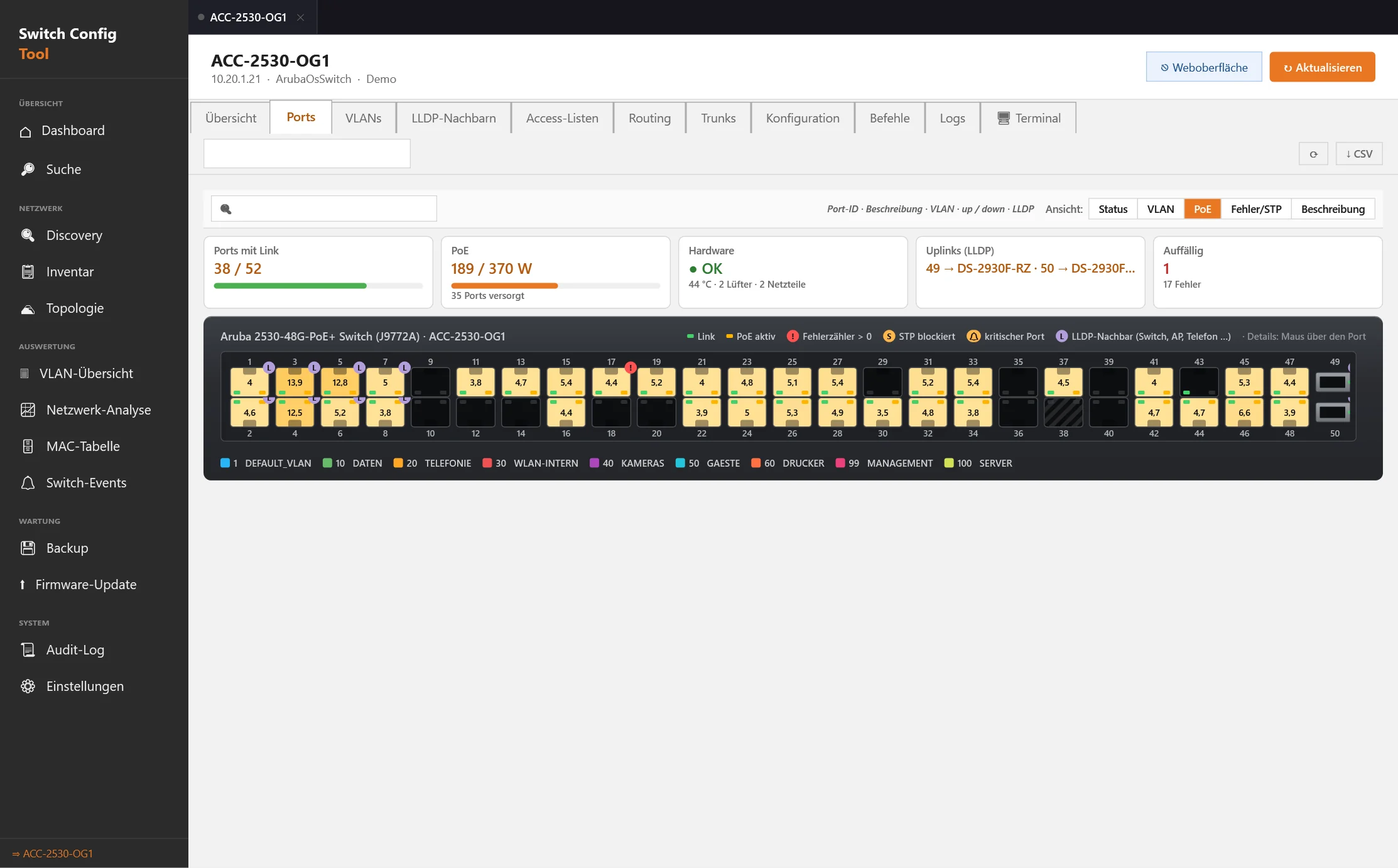
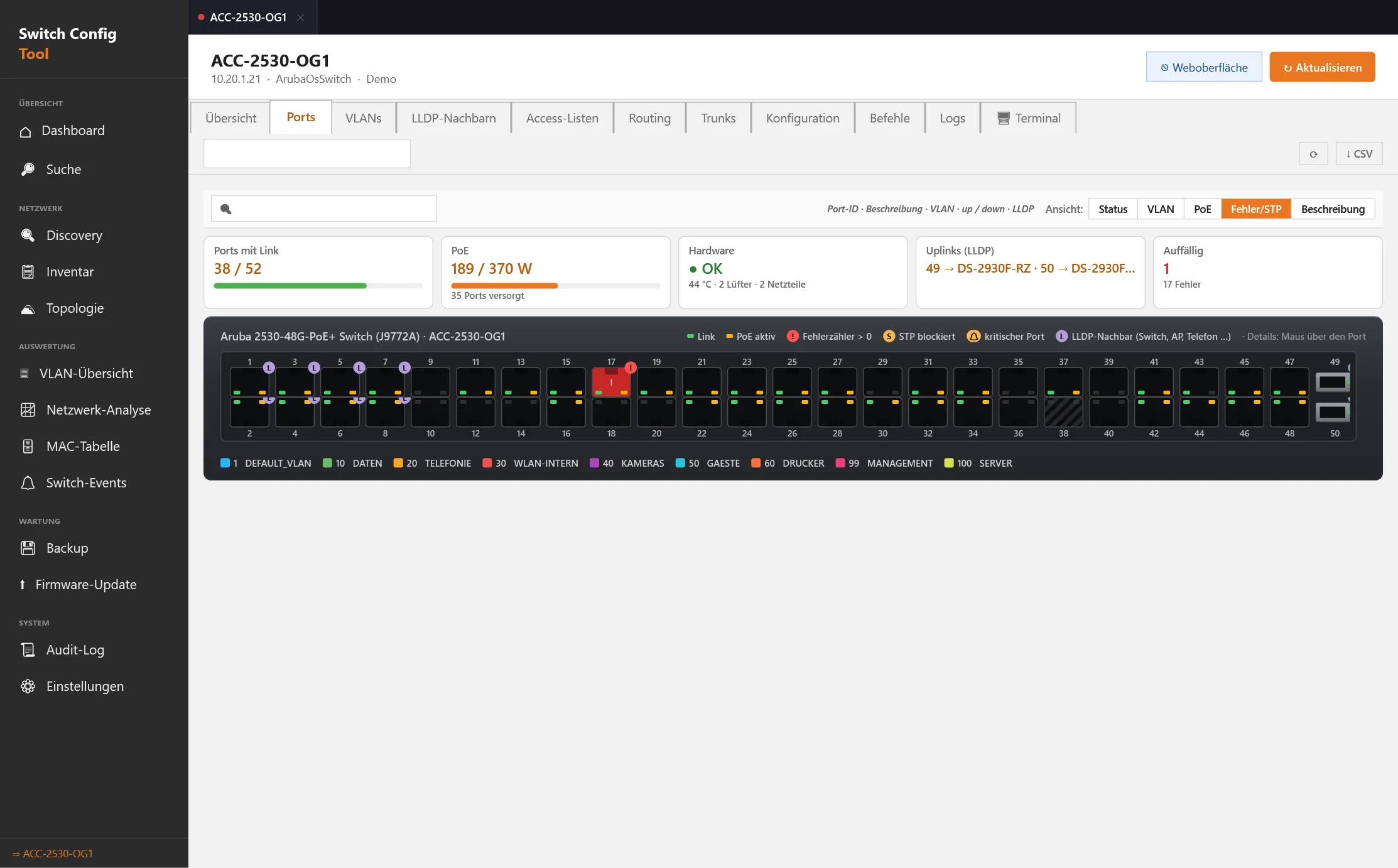
A port view like the device
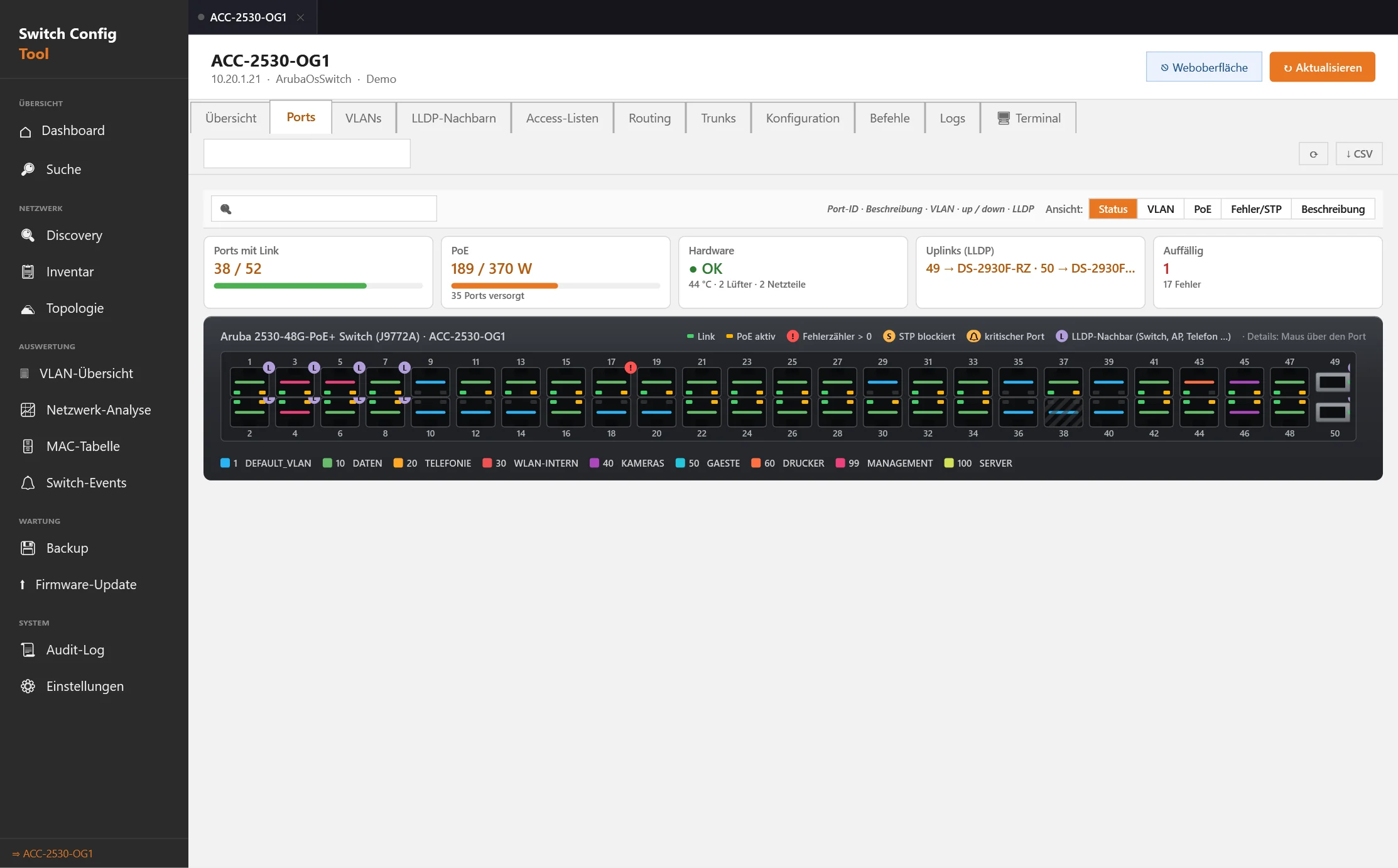
The switch front panel, with everything you would otherwise query on the console.
- Link, PoE, error counters, STP state and LLDP neighbours per port; views for status, VLAN, PoE, errors and description
- Port editor: description, admin state, access VLAN, tagged VLANs, speed and PoE
- Port actions: reset counters, restart port, restart PoE, cable test (depending on the family)
- Select several ports and change them together, apply port templates
VLANs: create once, tagged correctly everywhere
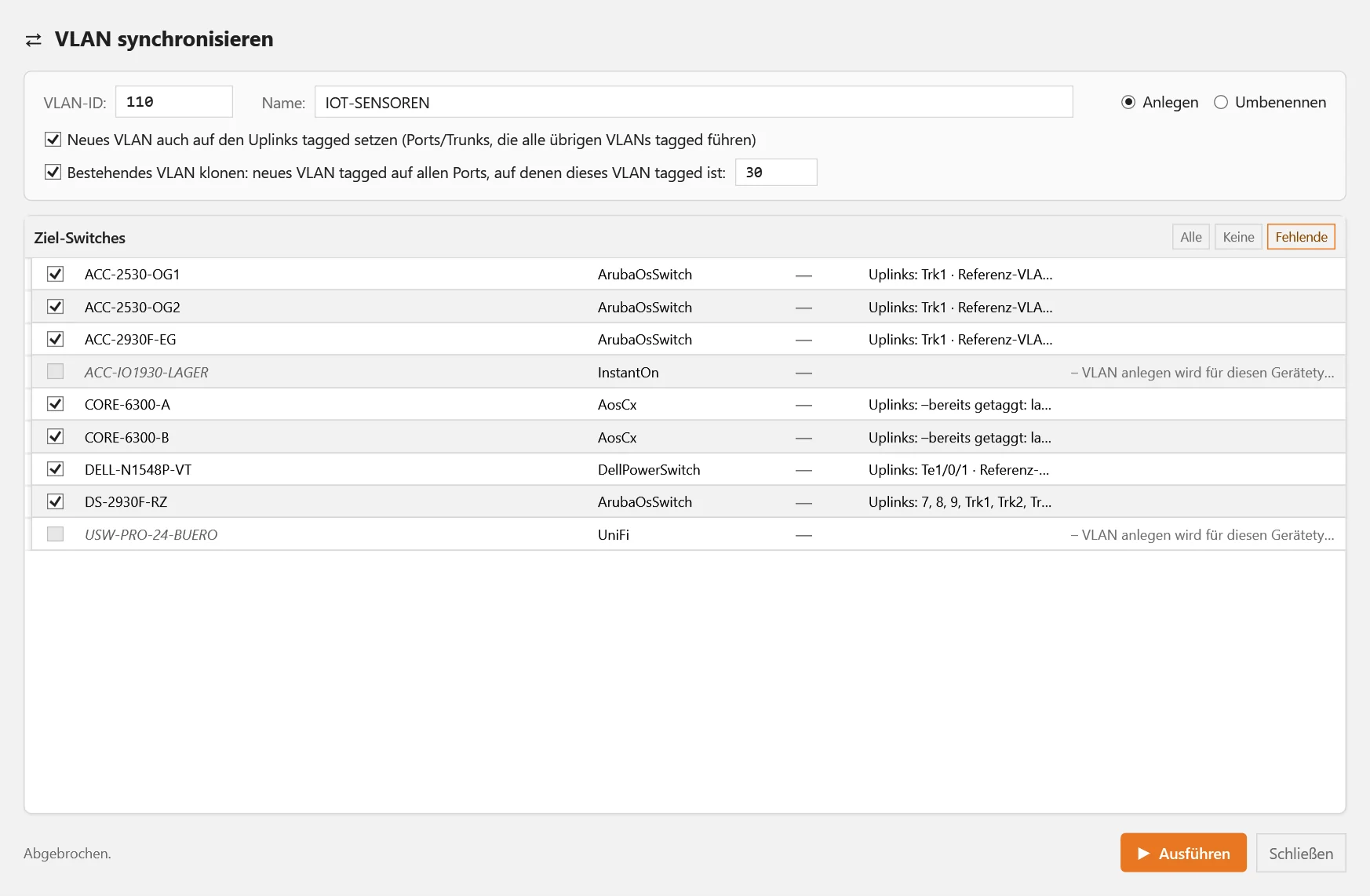
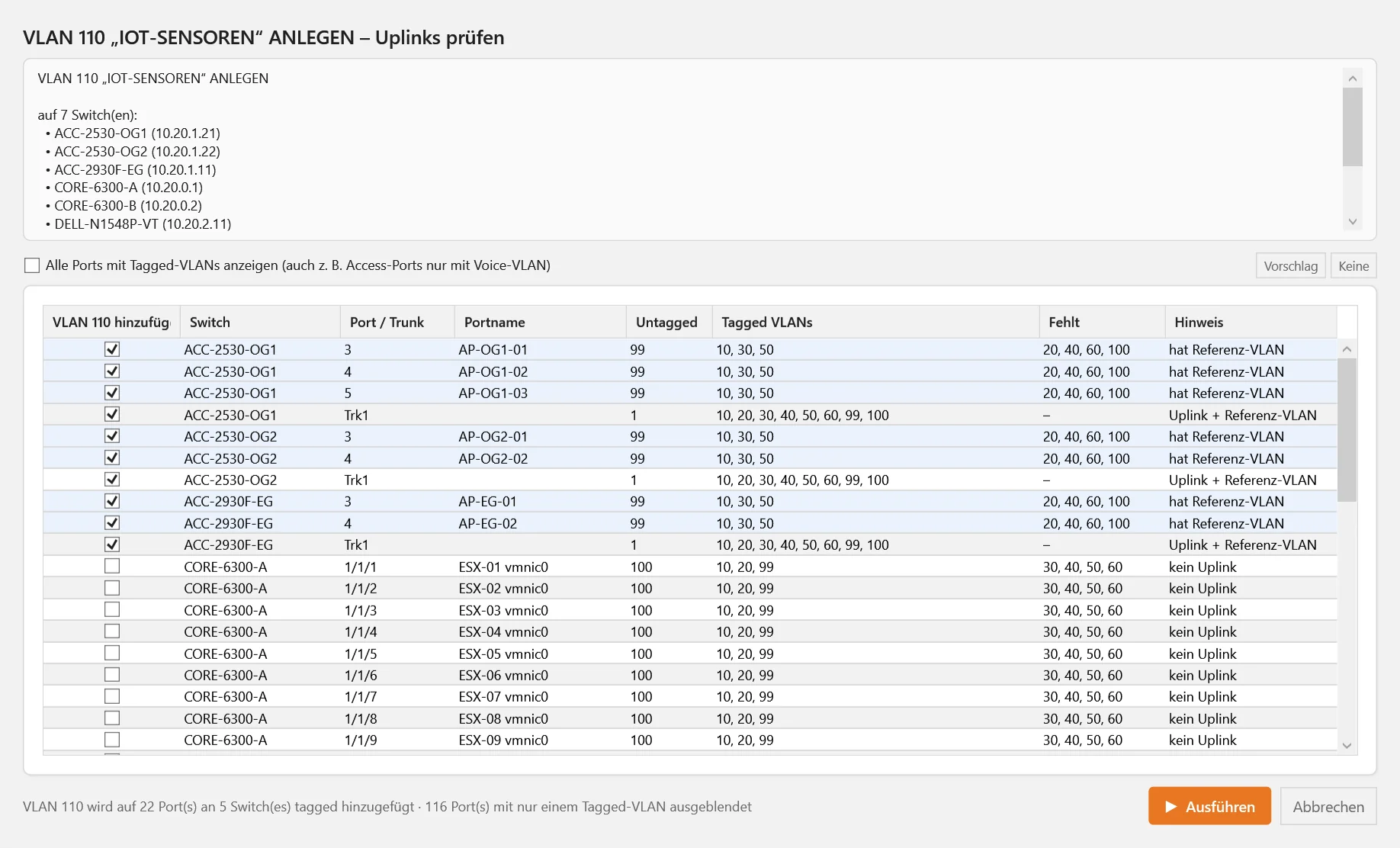
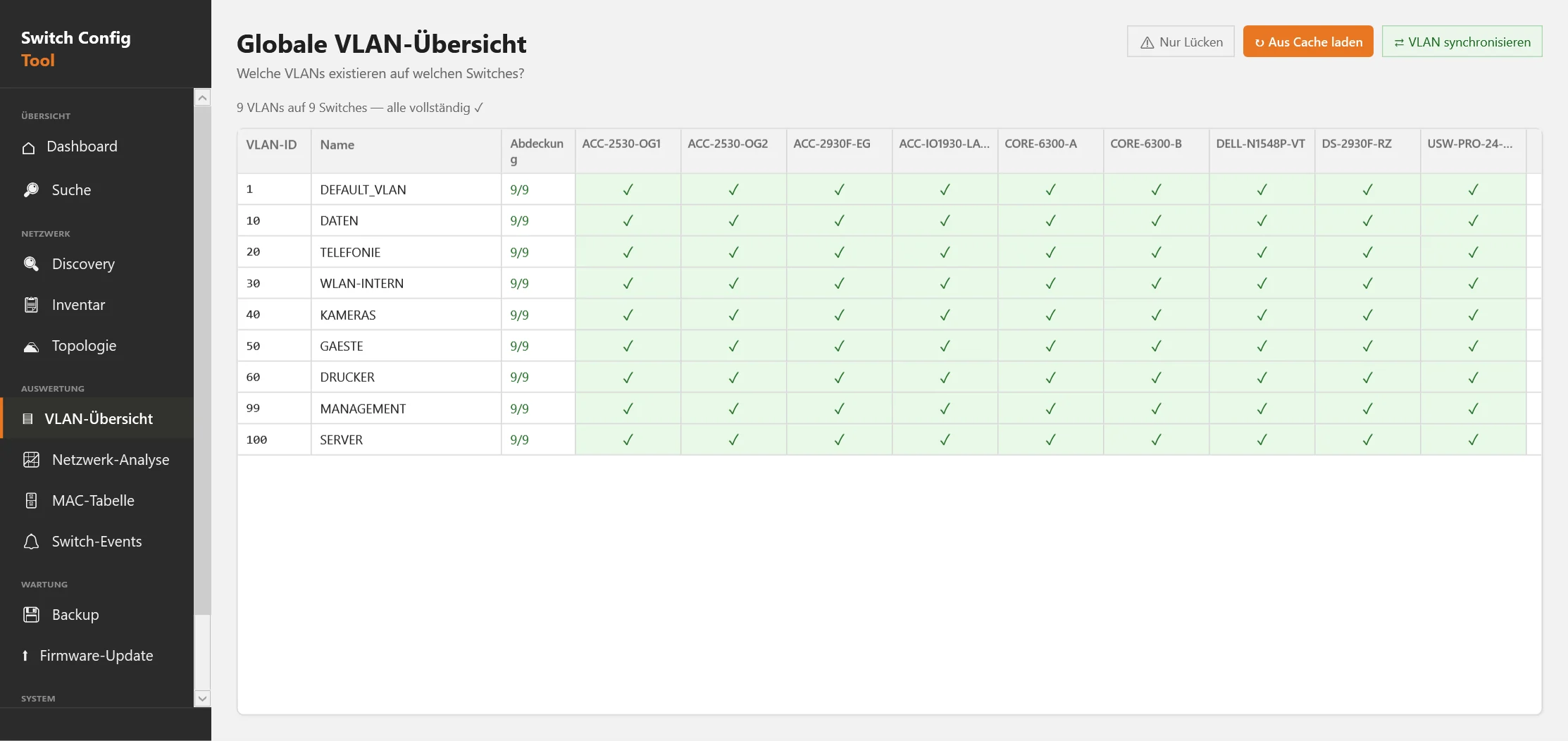
VLAN sync creates a VLAN on many switches and tags it on the right ports.
The global VLAN overview shows as a matrix which VLAN exists on which switch and marks gaps. The sync creates or renames a VLAN on all selected switches, on every switch that supports writing.
- 1Check The tool reads live whether the VLAN already exists and detects the uplinks: ports and trunks that carry all other VLANs tagged.
- 2Select The “Check uplinks” window lists every port with tagged VLANs, with port names, pre-selected uplinks and missing VLANs. You tick what should be tagged.
- 3Execute The VLAN is created and additionally tagged only on the ticked ports. Per switch it runs in one SSH session with a single save at the end. Nothing is removed.
With “Clone existing VLAN” the new VLAN takes over all ports on which an existing VLAN is tagged, for example all wireless access point ports. Untagged assignments stay untouched.
Topology and LLDP
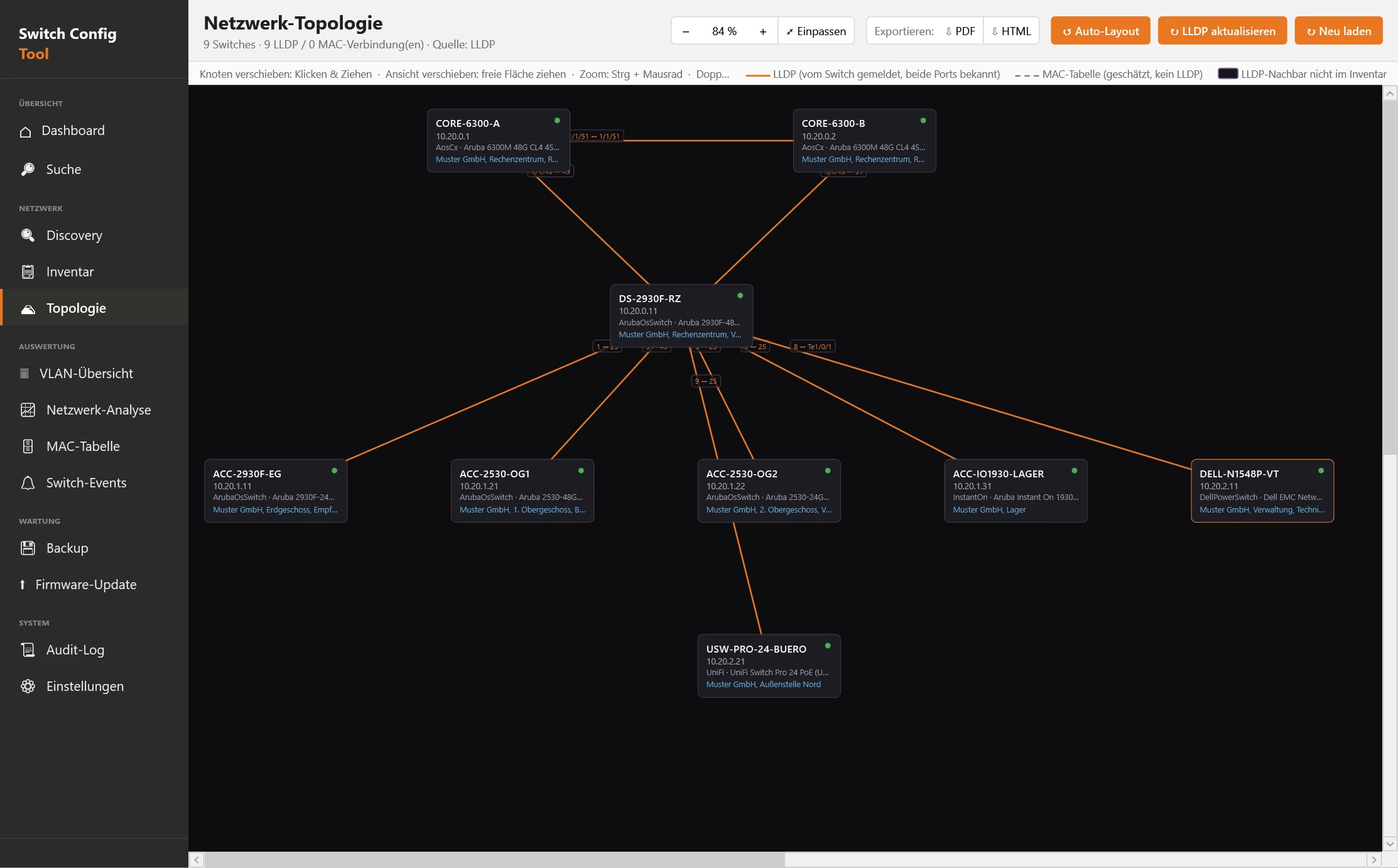
The map is built from the LLDP neighbours of the switches.
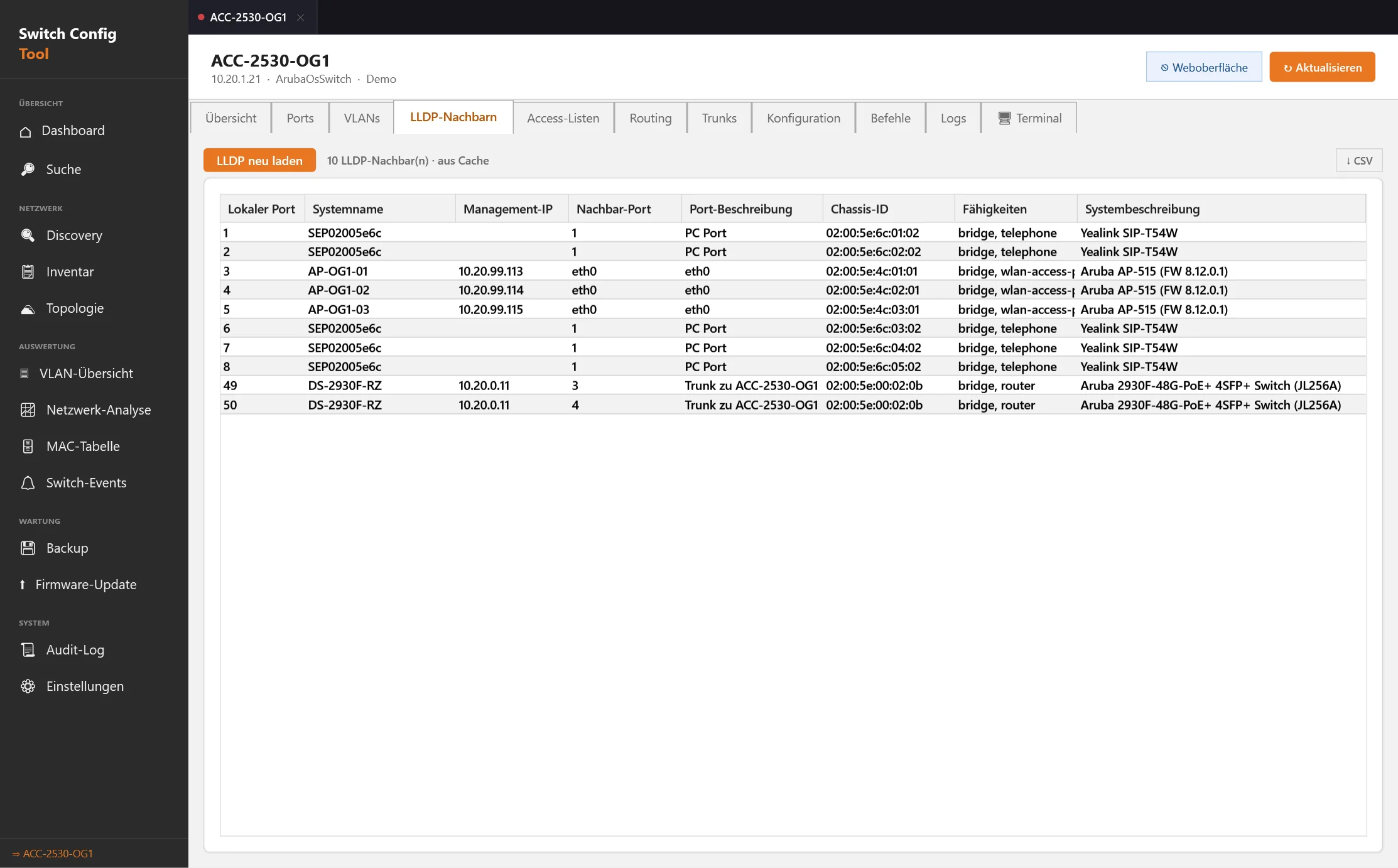
Solid lines come from LLDP, dashed lines are estimated from the MAC table. Neighbour switches outside the inventory are shown and can be adopted with a double click. The LLDP table per switch lists clients, access points, phones and switches with management IP, neighbour port and capabilities, exportable as CSV. The topology can be exported as PDF or HTML.
MAC table and search
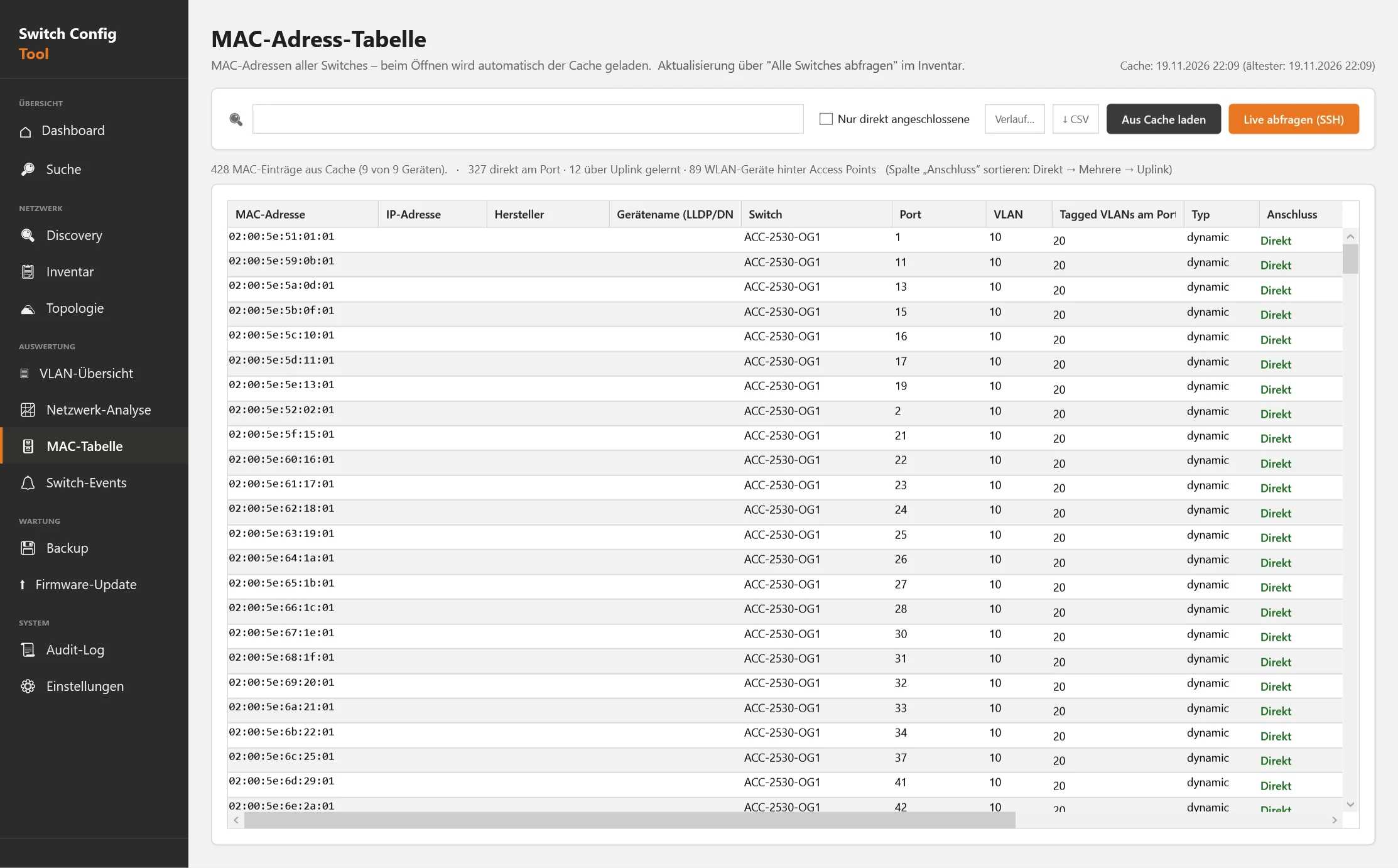
Where is this device really connected?
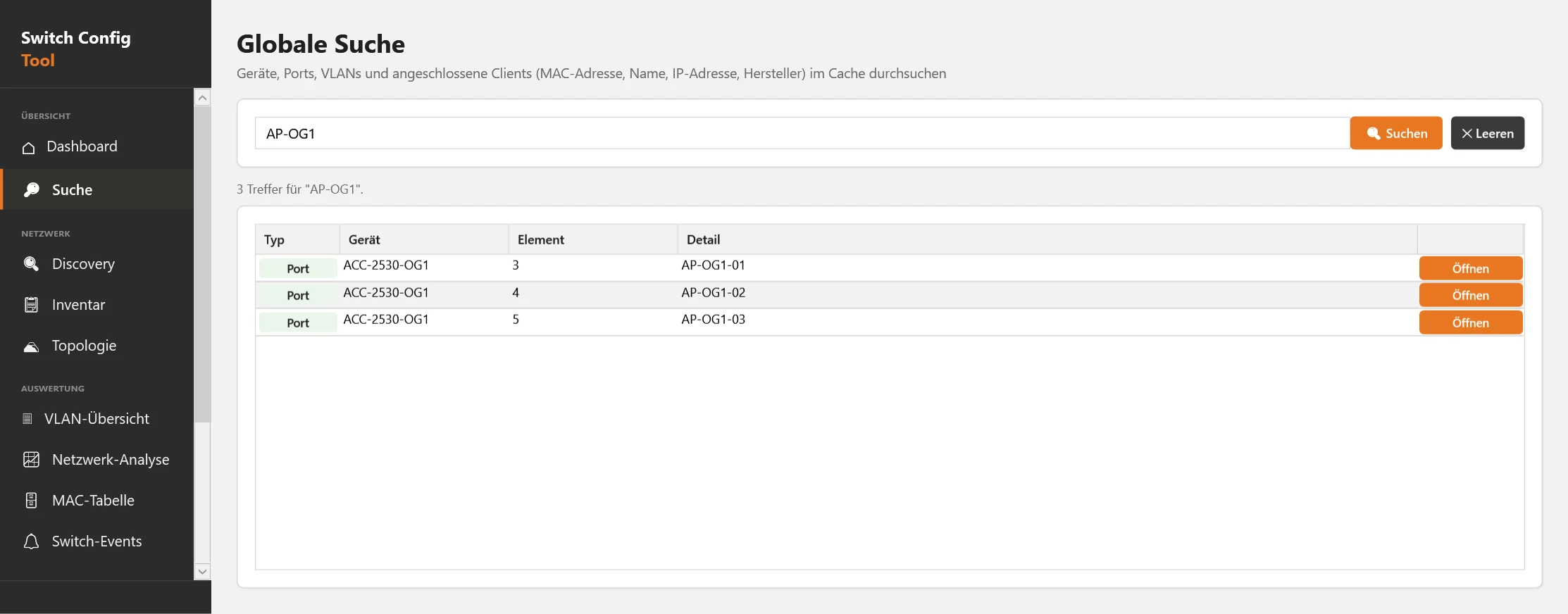
The MAC table collects the addresses of all switches with vendor detection. The “Connection” column separates directly attached devices from those learned over uplinks and from wireless clients behind access points. The client history shows when which MAC sat on which port. Global search finds devices, ports, VLANs, MAC addresses and names in the cache of all switches.
Backup, diff and firmware
Back up configurations and trace every change.
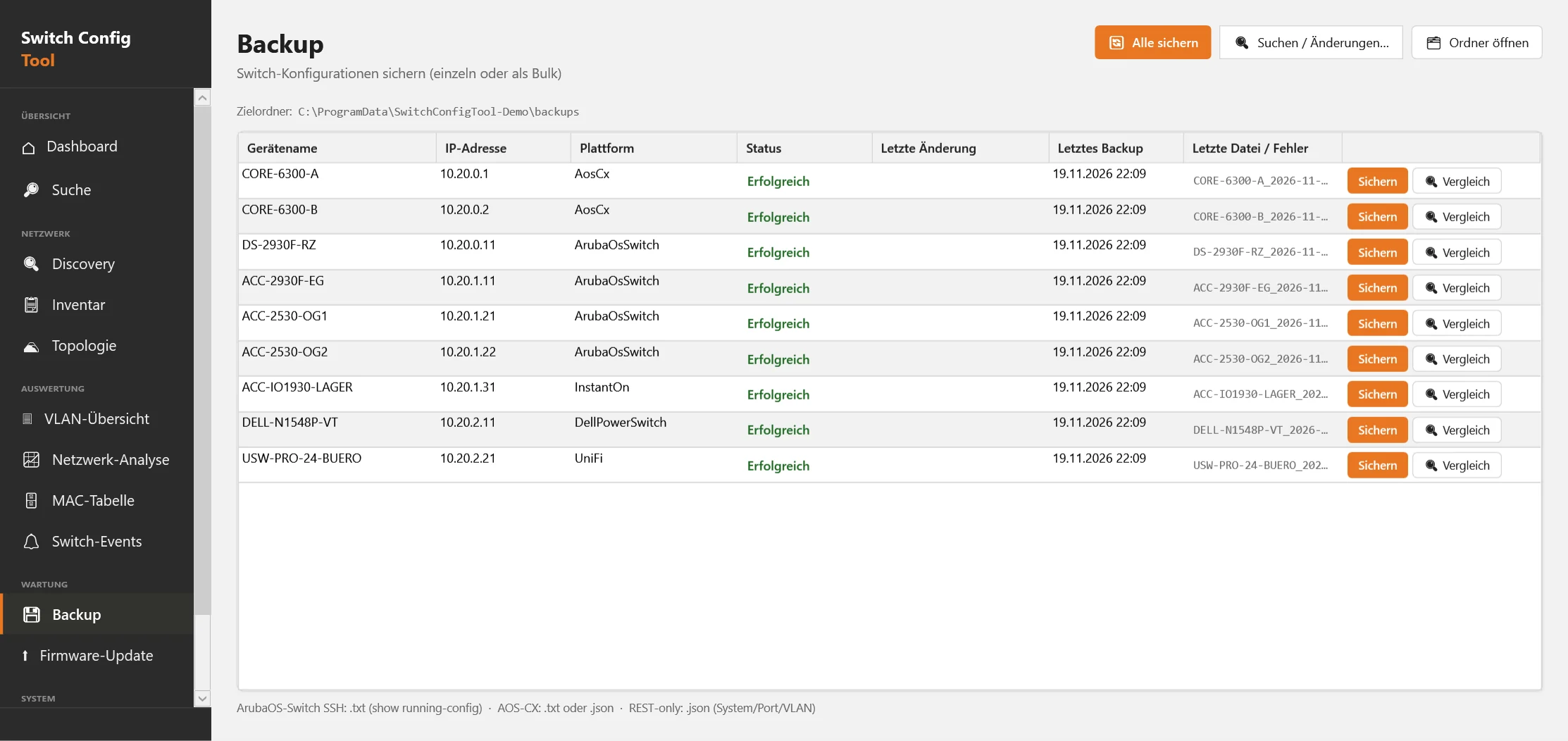
- Backups manual or scheduled, stored per device; full-text search across all backups (“which switch has VLAN 30?”)
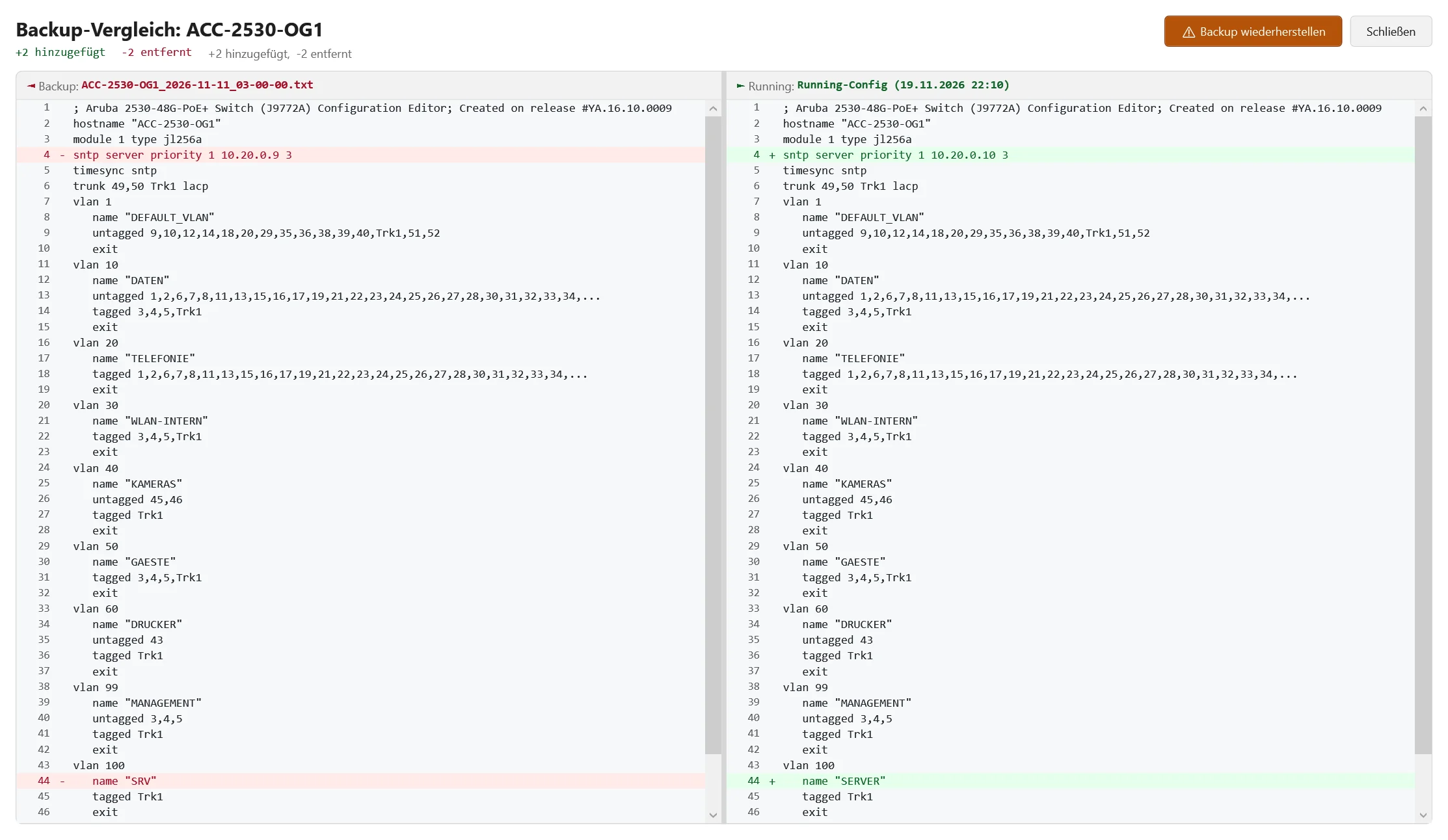
- Every backup is compared with the previous one: changes appear in the audit log and as a notice
- Old versus running config side by side, restore on AOS-CX
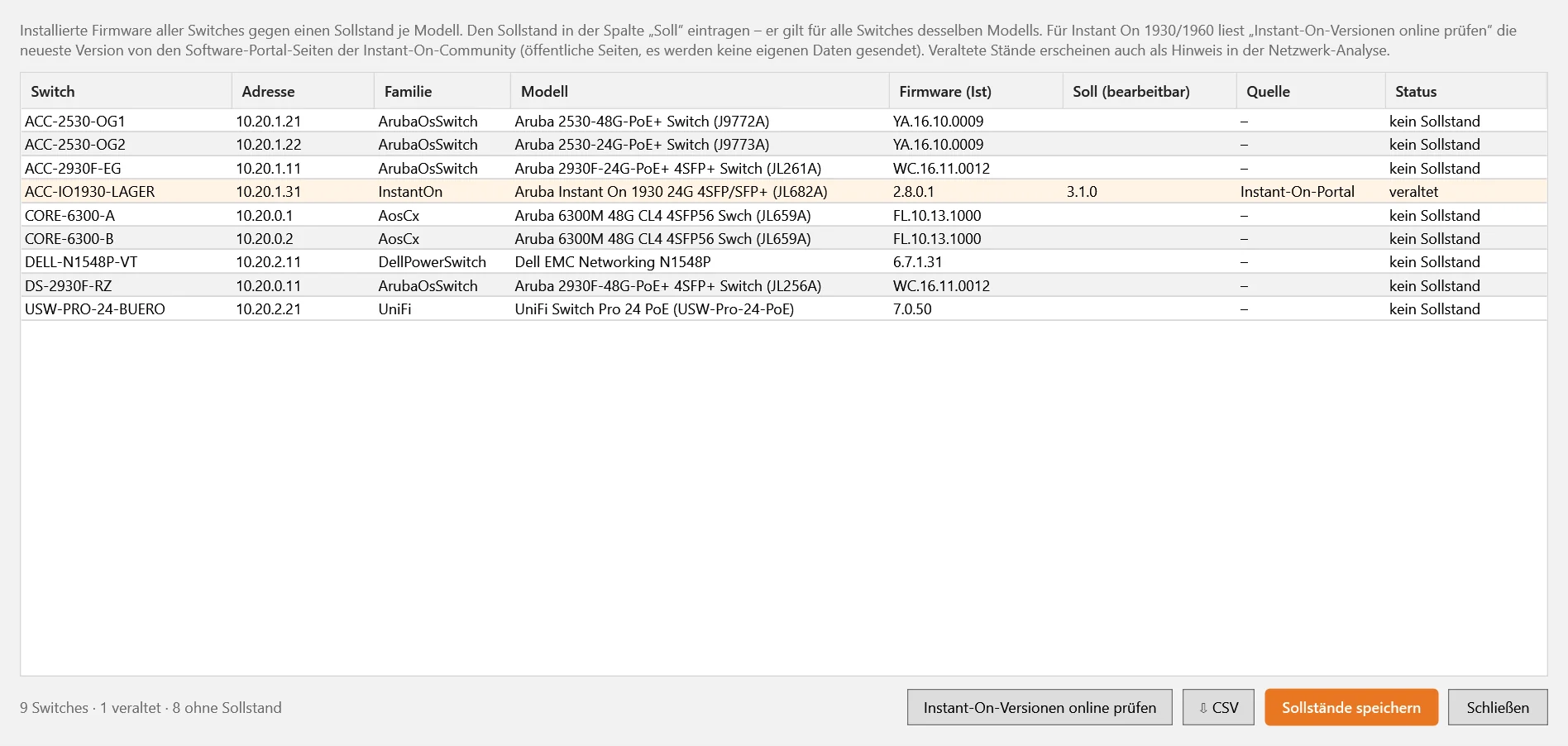
- Firmware overview against a target version per model; firmware upload via TFTP on ArubaOS-Switch
Network analysis and logs
Find problems before they become a phone call.
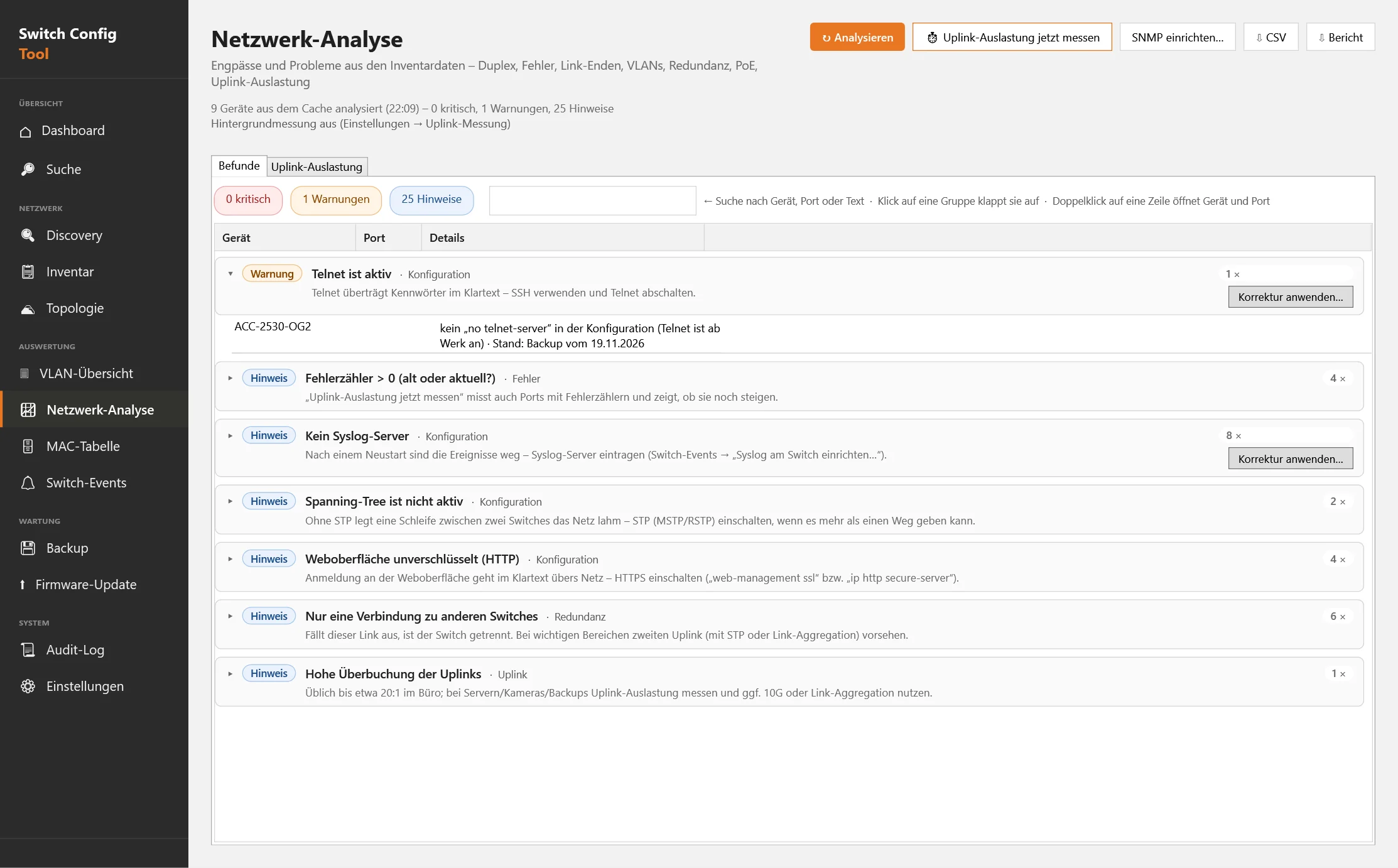
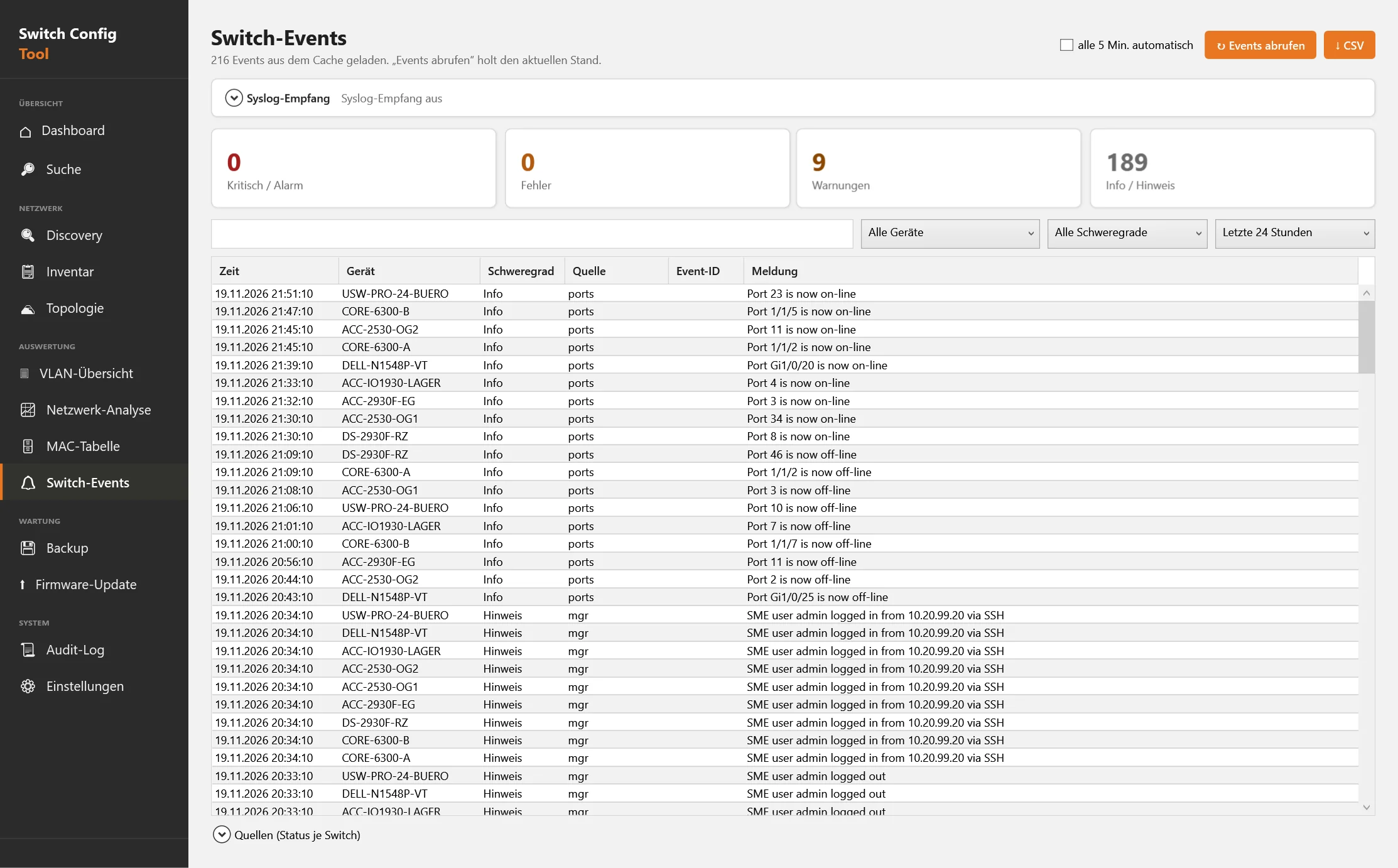
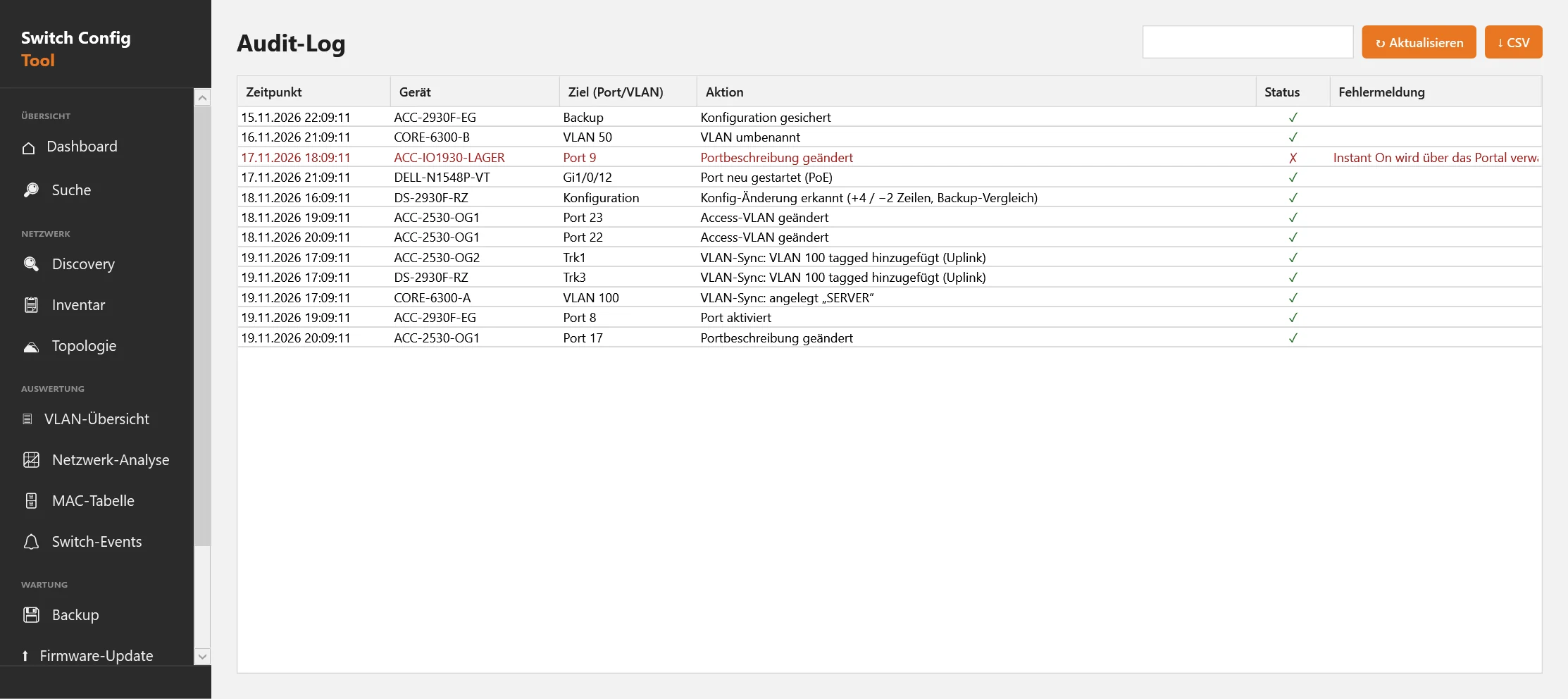
The analysis evaluates inventory data and the latest backup: speed mismatches on links, error counters, uplink load, VLAN gaps, missing redundancy, PoE and outdated firmware. Configuration rules report SNMP “public”, active Telnet, STP off, missing NTP or syslog and an unencrypted web interface. The switch events of all devices appear merged, optionally via syslog receiver; the audit log records every change the tool makes.
Commands on many switches
Read, compare and change in a targeted way, without ten SSH windows.
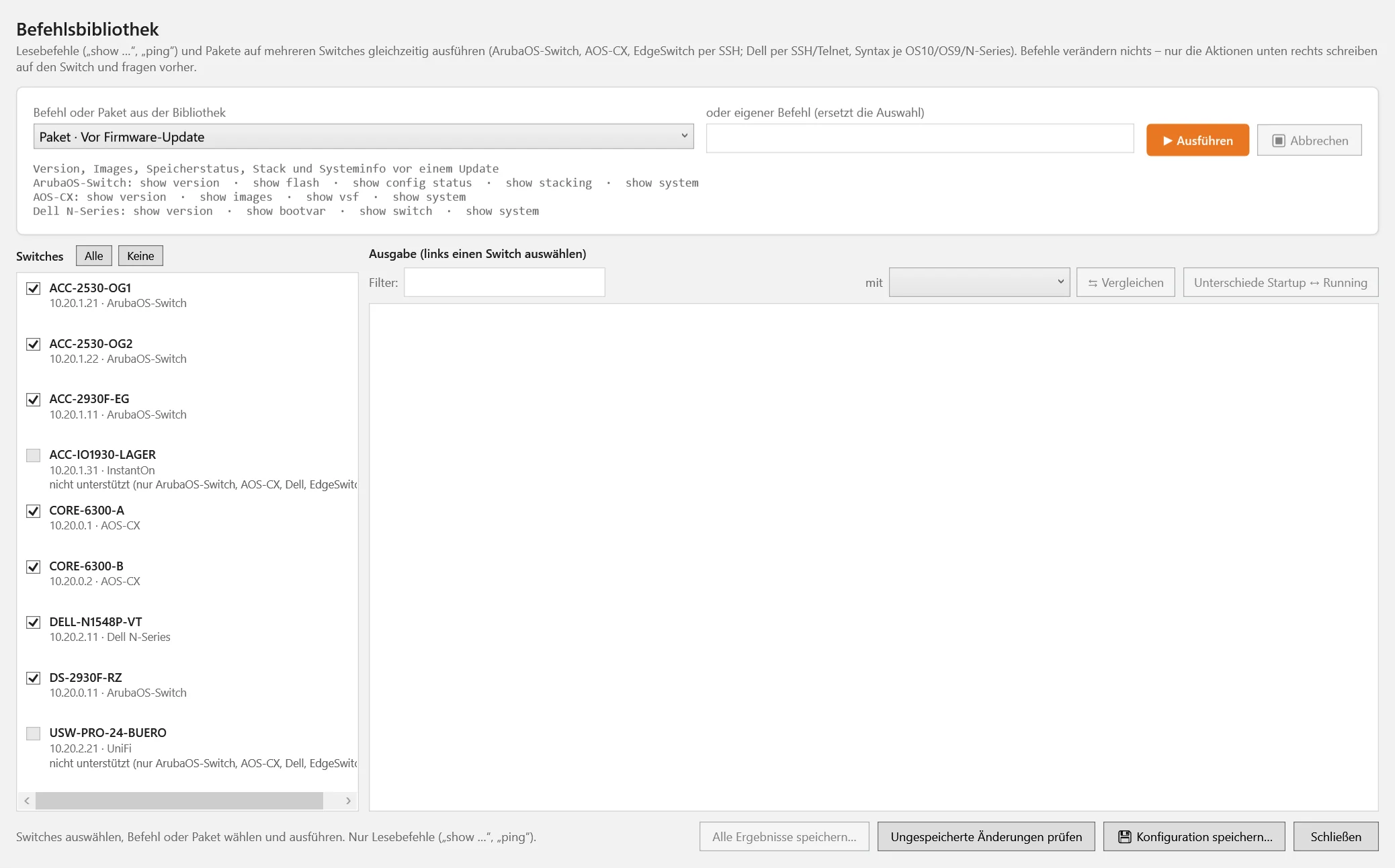
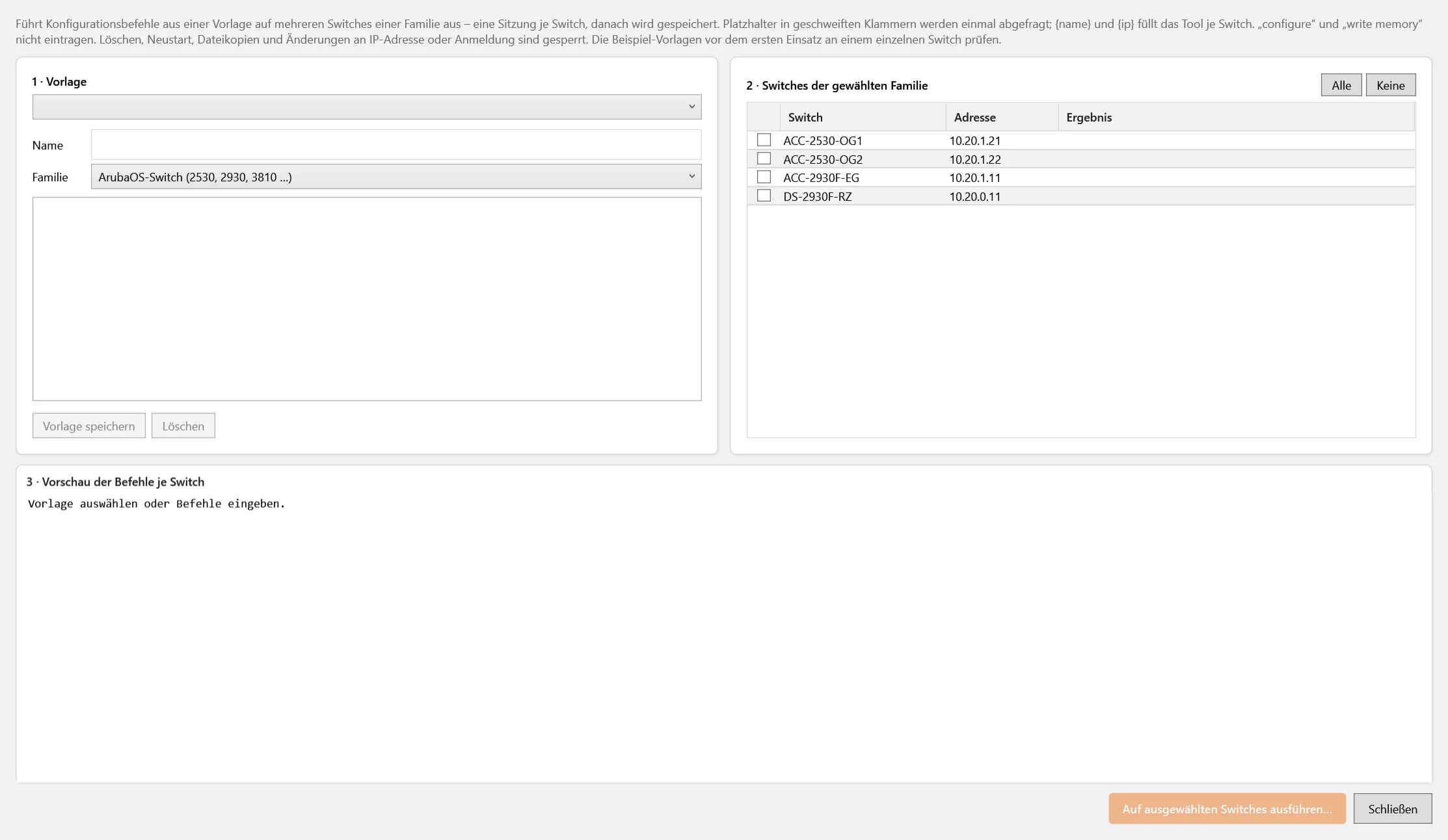
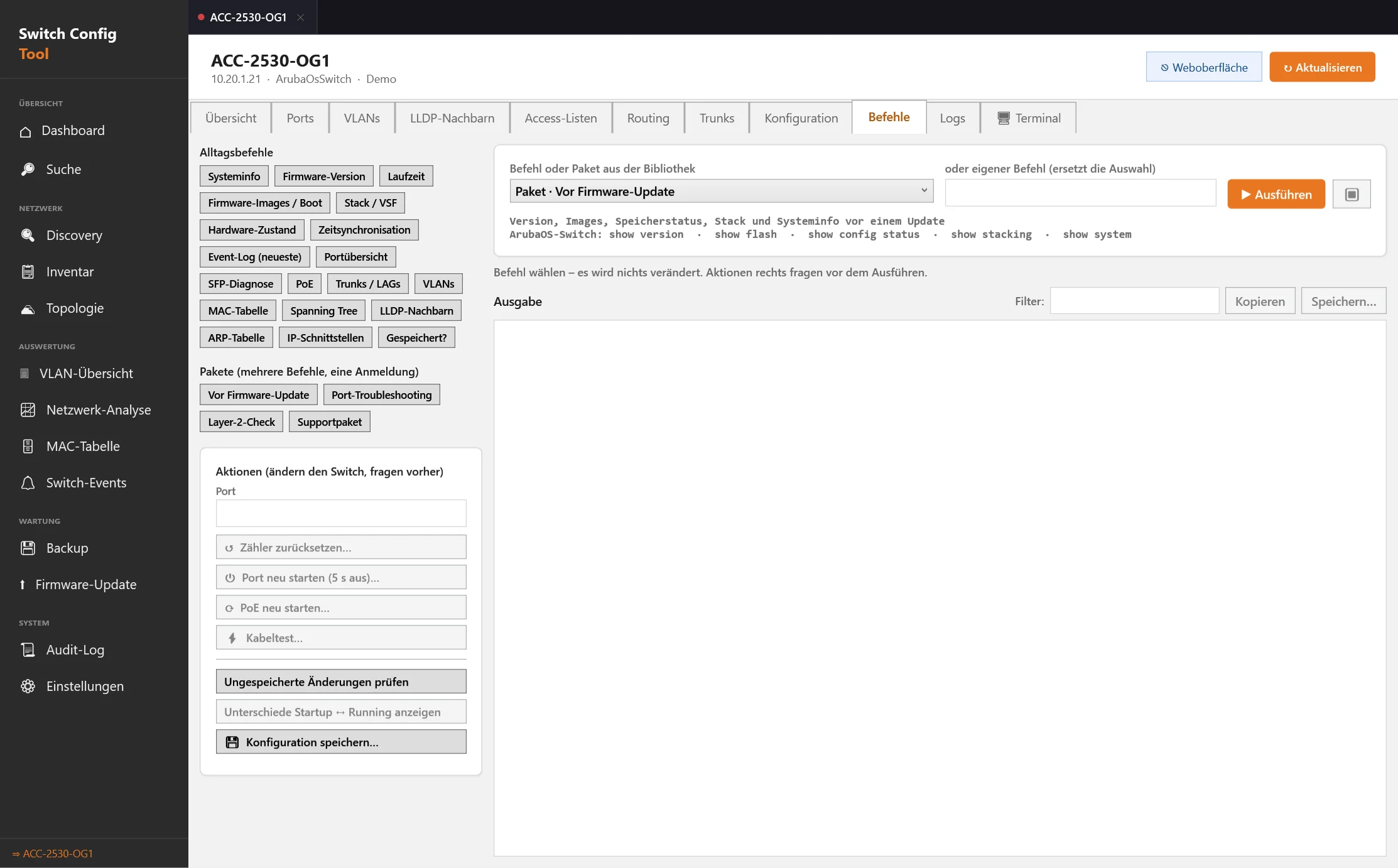
The command library runs read commands and packages on several switches at the same time, with the syntax of each platform: for example “Before firmware update”, “Port troubleshooting”, “Layer 2 check” and “Support package”. Outputs of two switches can be compared side by side. Mass change applies templates with placeholders to several switches of one family, with a preview per switch, confirmation, save and audit log. Delete, reboot, file copies and changes to IP or login are blocked.
Trunks, access lists and routing
Layer 2 and layer 3 in the same window.
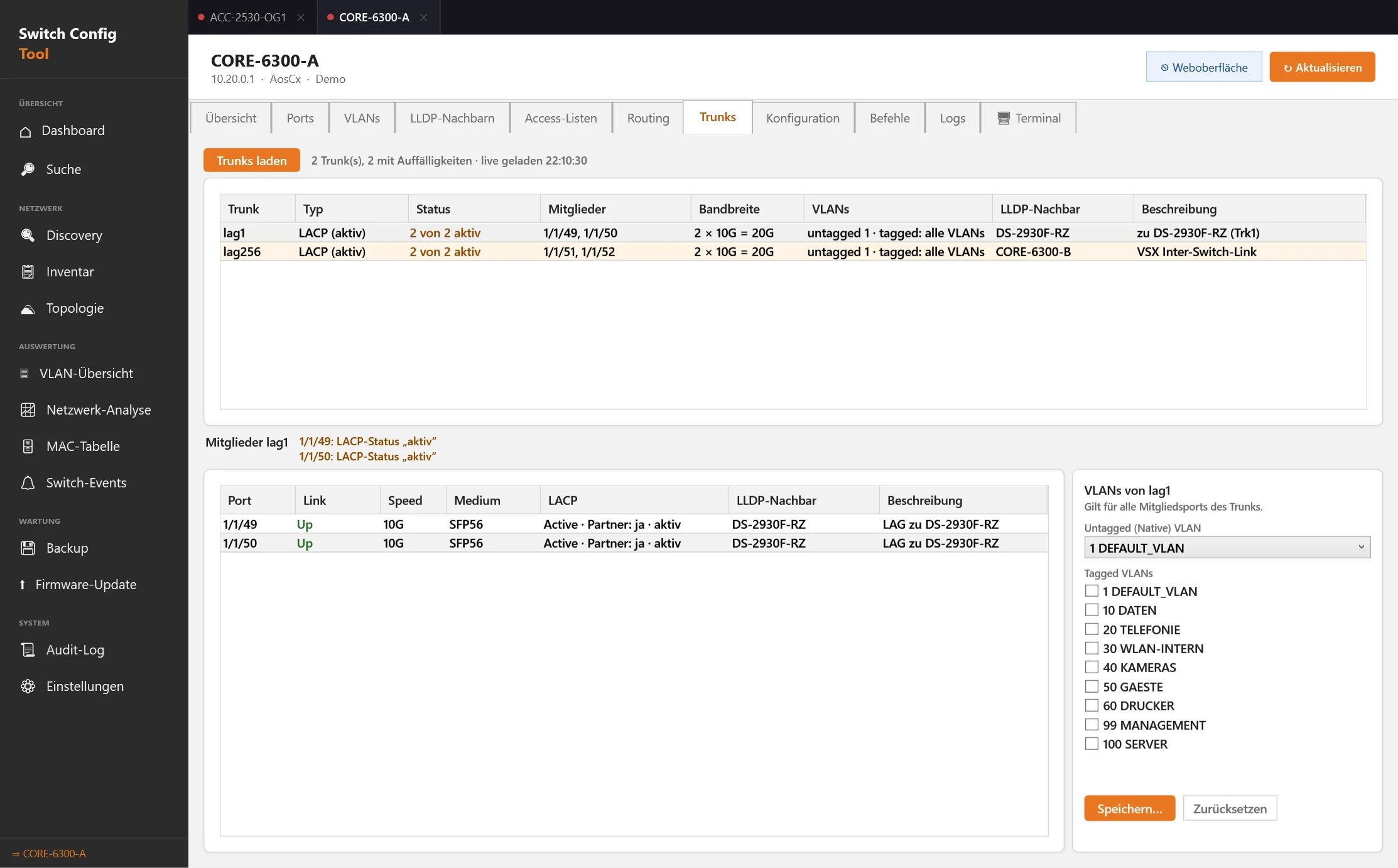
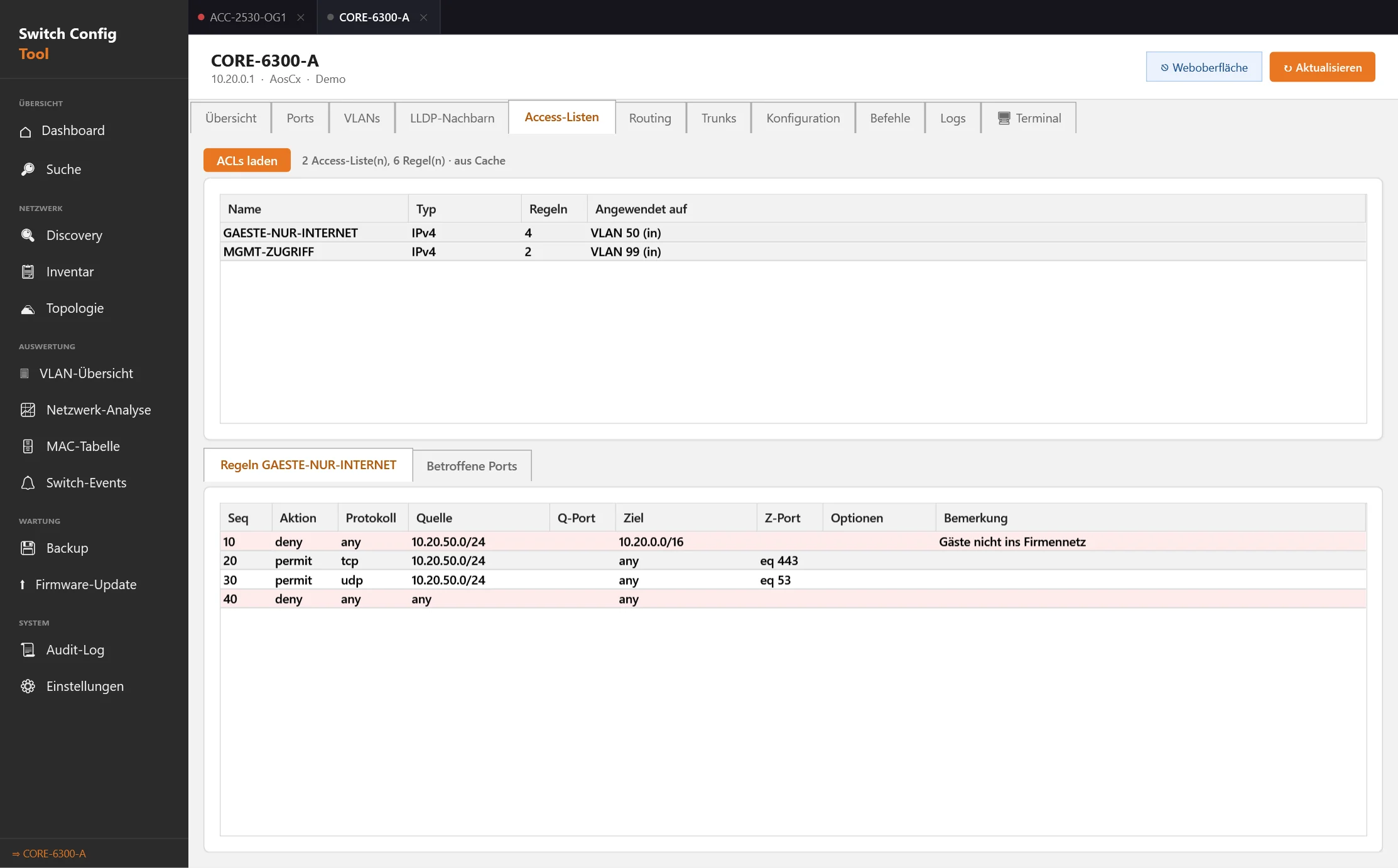
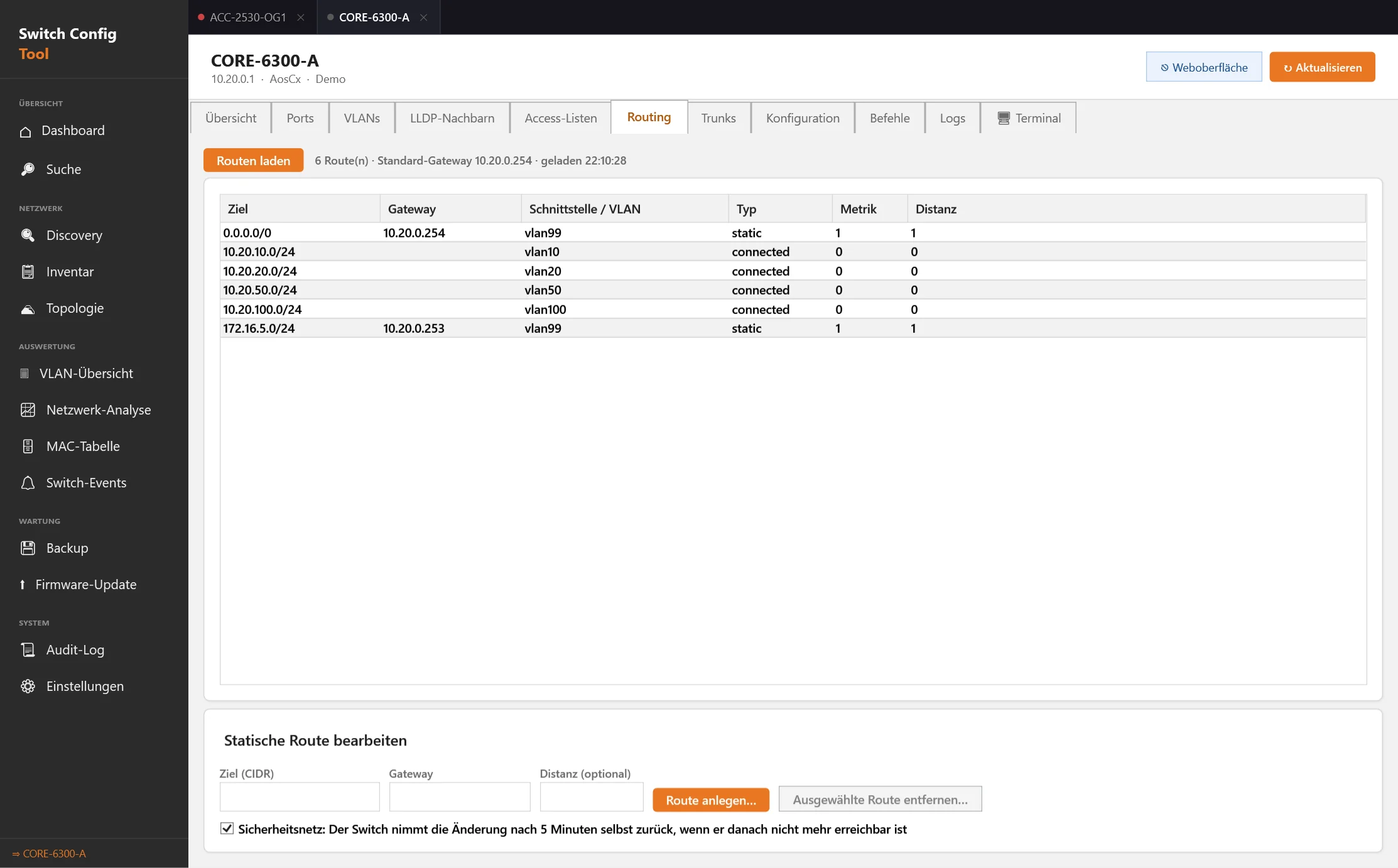
Trunks and LAGs show type, state, member ports, bandwidth and LLDP neighbours; the VLANs of a trunk are editable. Access lists appear with rules and bindings to ports and VLANs (read-only). The routing table shows the default gateway first; static routes can be added and removed, with a safety net: if the switch can no longer be reached afterwards, it takes the change back by itself after five minutes.
More features
What else saves time day to day.
- NotificationsPort alarms, critical findings, configuration changes and optionally new devices via Teams or Slack webhook or e-mail, with a test message.
- Port alarms in the backgroundCritical ports are monitored; a link change shows a notice in the Windows notification area.
- Client historyWhen which MAC sat on which end-device port, which devices are new or have moved.
- Network documentationDevices, VLAN plan, connections and port assignment as HTML (PDF) or CSV, extended with the connected devices per port.
- Read the running configRead, view, copy and save the configuration as a file with one click; saving on the switch asks for confirmation.
- Set up SNMP, syslog and NTPThe tool checks which switches answer via SNMP and sets up read access, a syslog target and a time server via CLI, with a command preview.
- SSH terminalDirect CLI sessions inside the tool, no extra program.
- Manage credentialsSet for all devices at once or per device family, edit later, correct family and ports.
- Port templatesSave recurring port settings as a template and apply them to several ports.
Safety nets and technology
A tool that can change many switches needs brakes.
- Preview, confirmation, audit logChanges show what will happen beforehand, ask before risky actions and appear in the audit log afterwards.
- Local, no cloud accountThe tool runs on your Windows PC and talks to the switches directly. There is no agent in the network.
- Credentials encryptedPasswords in the inventory are stored with Windows DPAPI for the current user account.
- SSH host keys are verifiedStored on first contact, compared afterwards. If the key changes, the tool aborts before logging in.
- No silent fallback to plain textTelnet and HTTP are only used for devices that cannot do anything else, and only with an explicit setting.
- One EXE, over 700 testsSelf-contained for Windows 10/11 (x64), built with .NET 10. Parsers and the command library are covered by over 700 automated tests that need no hardware.
Request a demo
We show Switch Config Tool in a demo, with demo data or on your network. Tell us briefly which switch families you use and how many devices there are.
The screenshots on this page show a fictional network (“Muster GmbH”) with demo data, created with the demo mode of the app. We clarify questions about terms in a conversation.